



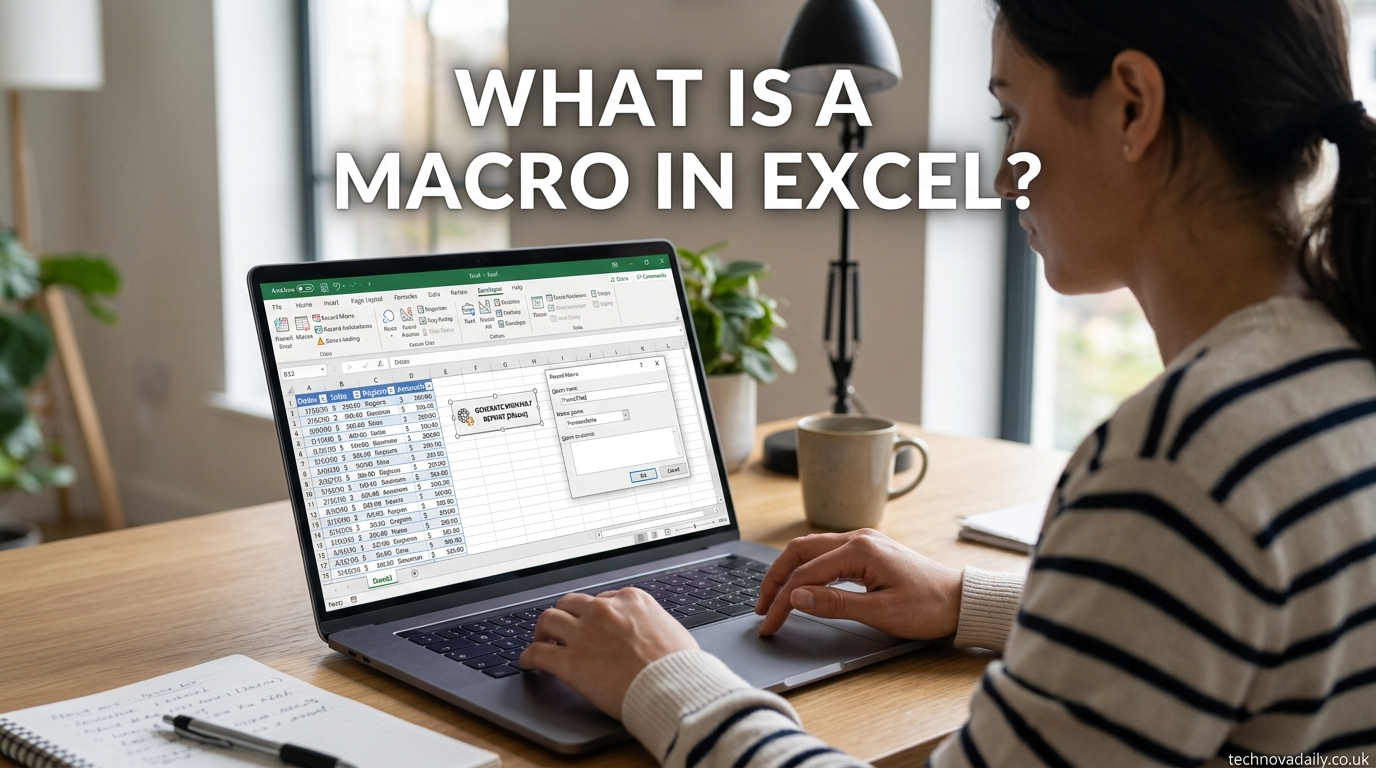
A macro in Excel is a recorded set of actions that you can run again with a single click. Instead of repeating the same clicks, formulas, or formatting steps every time you open a spreadsheet, you record them once, and Excel plays them back automatically whenever you need them.
Behind the scenes, Excel converts your recorded actions into code written in VBA (Visual Basic for Applications), which is the programming language built into Microsoft Office. You don’t need to know how to write code to use a macro — Excel writes it for you when you hit “record.”
If you’ve ever formatted the same report every Monday, cleaned the same messy export every week, or copied the same formulas into new sheets, a macro can do that work for you in seconds.
Why Use a Macro? (Common Use Cases)
Macros exist to remove repetition from your workflow. A few examples of where people actually use them:
- Formatting reports automatically — applying the same fonts, borders, and colors to a report every time it’s generated, without doing it by hand.
- Repetitive data entry — filling in standard labels, headers, or values across multiple sheets.
- Generating recurring reports — pulling data into the same layout on a weekly or monthly basis.
- Cleaning up imported data — removing blank rows, fixing date formats, or standardizing text after importing a CSV file.
A common real-world example: a sales team exports raw data from a CRM every Friday. Instead of manually deleting extra columns, renaming headers, and applying formatting each time, someone records a macro once. From then on, running that macro turns the raw export into a finished report in seconds.
How Macros Work (Simple Explanation)
There are two ways to create a macro: recording your actions, or writing code directly.
Recording is the beginner-friendly method. You turn on the macro recorder, perform your usual steps (formatting cells, entering formulas, sorting data), and stop the recorder. Excel has been quietly writing VBA code that matches every click and keystroke you made.
Writing code means typing VBA instructions directly, which gives more control but requires learning the language.
Macros are stored in one of two places:
- The current workbook, if the macro is only needed for that specific file.
- The Personal Macro Workbook, a hidden file that opens automatically with Excel, if you want a macro available in every spreadsheet you open.
How to Create a Macro in Excel (Step-by-Step, Beginner Level)
Step 1: Enable the Developer tab
Go to File > Options > Customize Ribbon, then check the box next to “Developer” in the right-hand list. This adds a Developer tab to your ribbon, which is where macro tools live.
Step 2: Start recording
On the Developer tab, click “Record Macro.” A dialog box will ask you to name the macro and choose where to store it.
Step 3: Name your macro
Use a short, descriptive name with no spaces (for example, FormatSalesReport). Add a keyboard shortcut if you want to run it quickly later.
Step 4: Perform your actions
Do exactly what you want the macro to repeat — apply formatting, enter formulas, sort columns, whatever the task requires.
Step 5: Stop recording
Click “Stop Recording” on the Developer tab once you’re done.
Step 6: Run the macro
Go to Developer > Macros, select your macro from the list, and click “Run.” It will repeat every action you recorded.
Macro-Enabled Files (.xlsm) — What That Security Warning Means
If a workbook contains a macro, Excel saves it with a .xlsm extension instead of the standard .xlsx. When you open a .xlsm file, Excel often shows a yellow security warning bar asking you to “Enable Content.”
This warning exists because macros can run code automatically, and malicious macros have historically been used to spread malware. Only enable macros in files you trust or created yourself. If you receive a .xlsm file from an unknown source, it’s safer to leave macros disabled until you can verify what the file does.
Macros vs. VBA — What’s the Difference?
This is one of the most common points of confusion for beginners.
- A macro is the automated task itself — the recorded set of actions.
- VBA is the programming language that macros are written in.
Think of it this way: recording a macro is like using a voice recorder to capture instructions, while VBA is the language those instructions are written in once transcribed. You can use macros without ever touching VBA code, but if you want to customize what a macro does beyond what recording captures, you’ll need to edit the VBA behind it.
Pros and Cons of Using Macros
Pros
- Saves significant time on repetitive tasks
- Reduces human error by performing the same steps identically every time
- Requires no coding knowledge to get started
- Can be assigned to buttons or keyboard shortcuts for one-click use
Cons
- Macro-enabled files can carry security risks if the source isn’t trusted
- Recorded macros are limited to fixed, repetitive actions — they can’t easily adapt to unexpected data
- Building more advanced or flexible macros requires learning VBA
- Macros can break if the layout of a spreadsheet changes unexpectedly
FAQs
Is a macro the same as VBA?
No. A macro is the recorded task; VBA is the programming language the macro’s instructions are written in.
Are macros safe?
Macros from trusted sources are safe. Macros from unknown files can carry security risks, since they can execute code automatically, so Excel disables them by default and warns you before running.
Do I need coding skills to use macros?
No. You can record a macro using only your mouse and keyboard. Coding skills are only needed if you want to customize the macro beyond what recording allows.
Can macros work in Google Sheets?
Google Sheets has its own version of macros, built on Google Apps Script instead of VBA. The concept is similar, but the underlying code and setup process are different.
Conclusion
A macro in Excel is simply a way to automate repetitive tasks by recording your actions once and replaying them whenever needed. You don’t need programming experience to create one — the Record Macro tool handles the technical side for you. Once you’re comfortable with basic macros, the natural next step is learning how to record your first one from start to finish, or exploring simple VBA edits to make your macros more flexible.
